
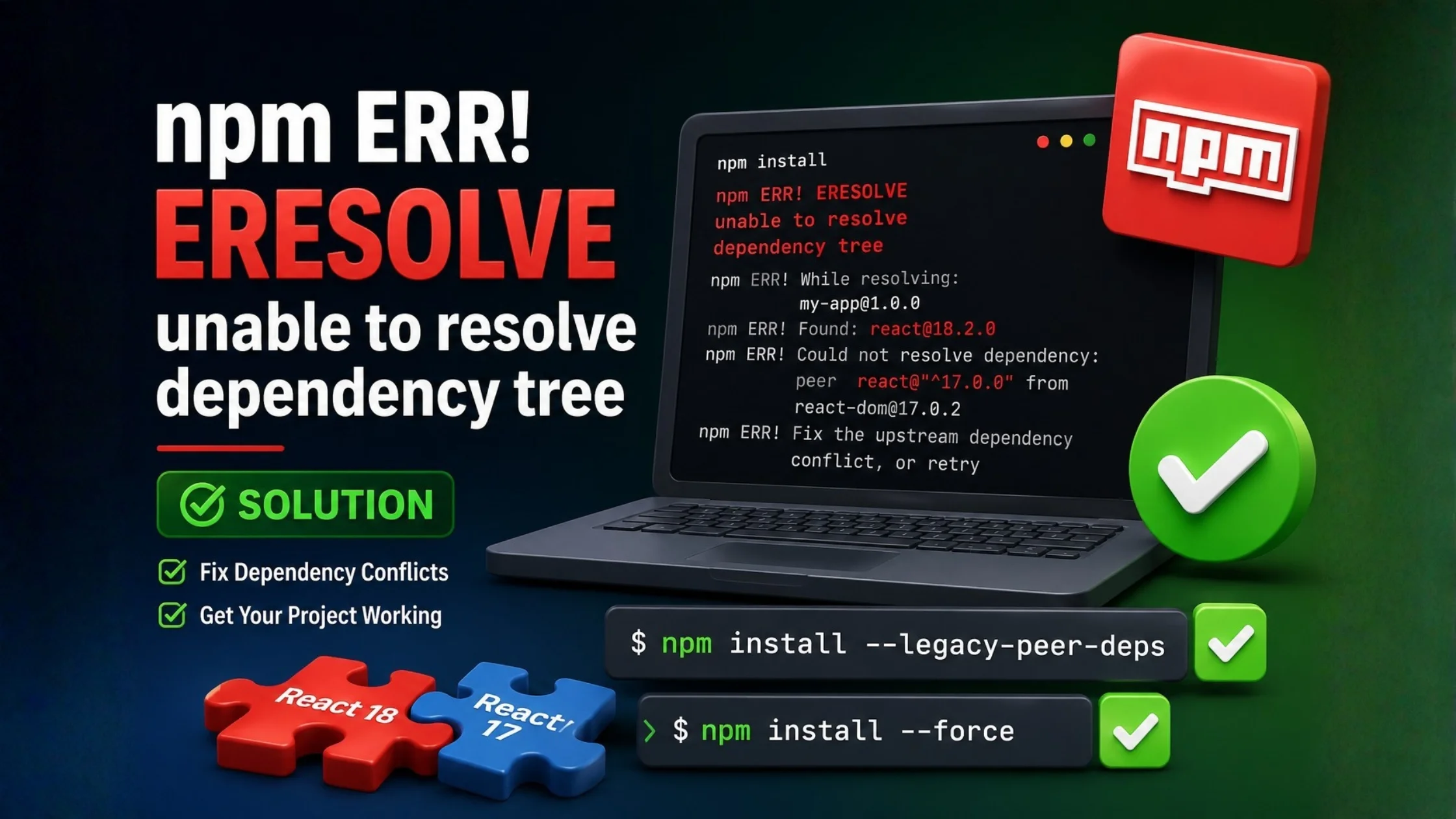
This error often pops up when npm (version 7+) encounters conflicting dependencies. As a developer, I ran into it while creating a new React project – npm complained it “could not resolve dependency” and stopped the install. In short, npm now treats peer-dependency conflicts as errors (whereas npm 6 only gave warnings). Let’s break down why this happens and how to fix it.
Why am I seeing this error?
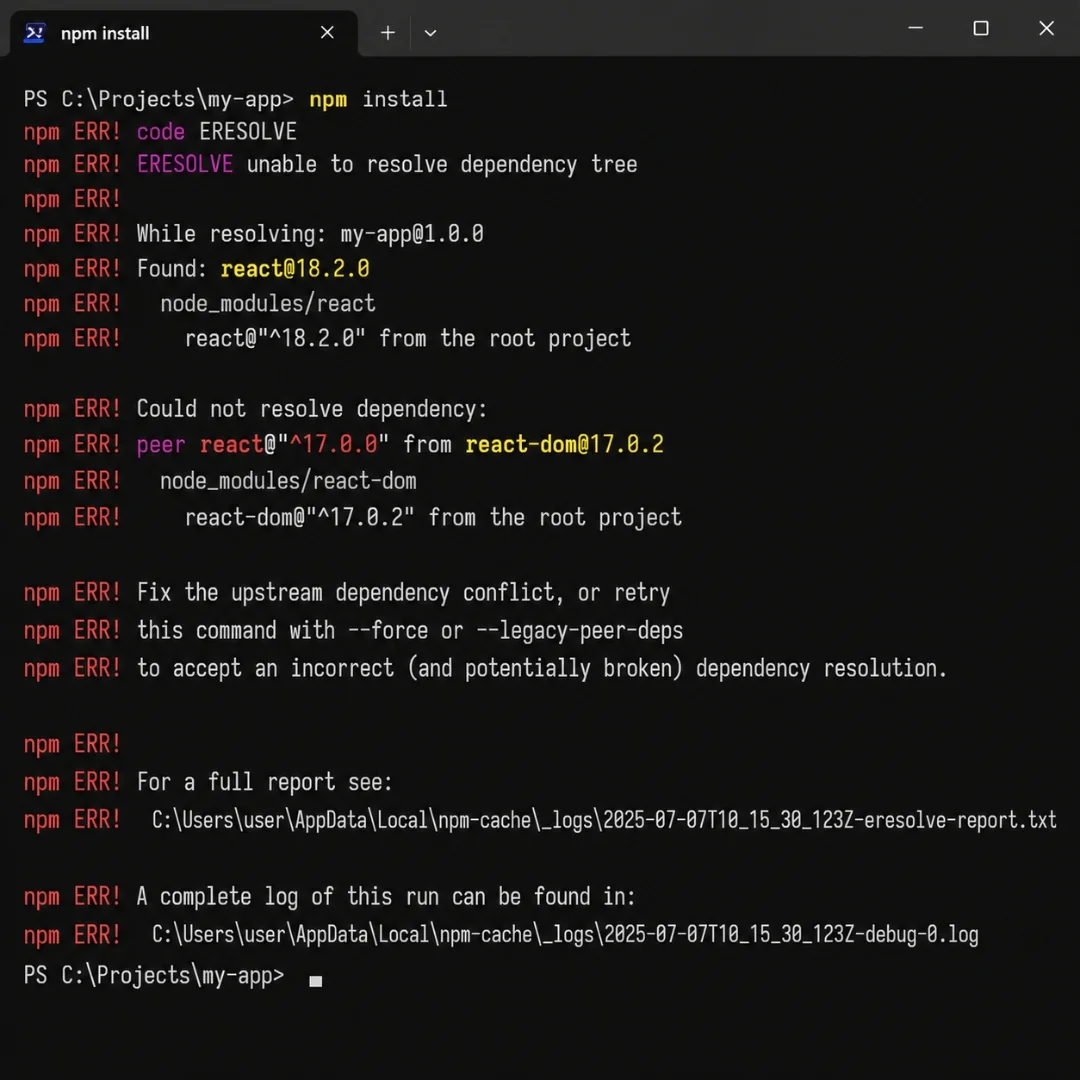
Starting with npm 7 (shipped in Node 15+), peer dependencies must be resolved at install time. If your project has one version of a library but a dependency requires a different version, npm throws the ERESOLVE error. For example, in one case I had React 18 in my app but a plugin required React 17. Npm reported:
As OneUptime’s guide explains, this means “npm cannot satisfy both requirements” and suggests you fix the upstream conflict or retry with --force or --legacy-peer-deps. In other words, npm is telling us exactly what to do: either align the versions or ignore the conflict.
What are peer dependencies?
A peer dependency is a way for a package to declare which version of another package it expects. In npm 7+, peer dependencies are automatically installed only if the version matches exactly. If there’s a mismatch, npm 7+ halts with ERESOLVE. The OneUptime guide puts it simply: **“You have React 18 installed” and “some-package requires React 17”, so npm fails. In contrast, older npm (v6) would have just warned about this.
How can I fix this error?
There are a few common approaches – some quick and dirty, others more robust. I always prefer to solve the actual conflict if possible, but in a pinch you can bypass npm’s strict check. Here are the main solutions I’ve used:
- Use
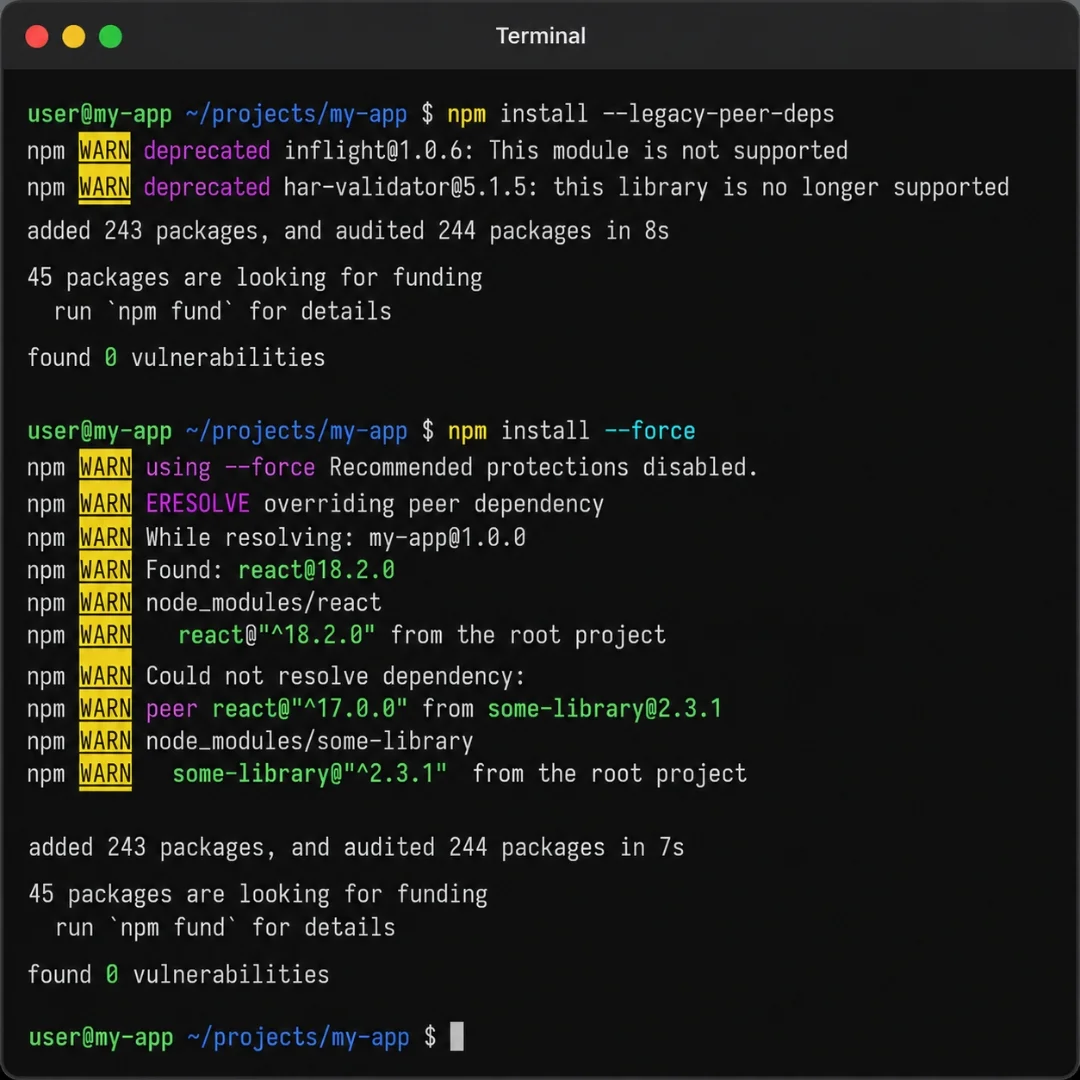
--legacy-peer-deps. This flag tells npm to ignore peer dependency conflicts, restoring npm 7’s behavior to the old npm 6 approach. In practice, run:
- or set it permanently with:
- This is usually enough to let the install complete. In my React project, setting
npm config set legacy-peer-deps truefinally allowednpx create-react-appto finish. - Use
--force. Alternatively,npm install --forcewill override all dependency conflicts and proceed. This can be useful if--legacy-peer-depsstill fails. However, use with caution:--forceignores even more checks and can leave you with a broken install. As one expert notes,--legacy-peer-depsis safer because it “still enforces other safeguards” and merely skips peer-dep checks, whereas--forceskips everything. In other words,--forcemay solve the immediate error but could cause harder-to-debug issues later. - Update conflicting packages. The best long-term fix is to resolve the version mismatch. Check if one of your dependencies has a newer version that supports your current setup. For example, if some-package wants React 17 but you need React 18, see if some-package@latest supports React 18. You can run:
- and then update it in your
package.json(e.g. to^3.0.0) and reinstall. In my case, updating a plugin to a React-18-compatible release eliminated the error entirely. If no update exists, you might need to find an alternative package. As one npm community expert put it, “Try updating the library to a React 18 compatible version… If no update exists, find an alternative library”. - Downgrade Node/npm (workaround). As a last resort, you could use an older Node version (e.g. Node 14) that bundles npm 6. Npm 6 will install despite peer conflicts (only warnings appear). This effectively sidesteps the strict check. It’s not ideal for the long run, but it’s a quick workaround if you’re in a pinch and can’t upgrade the conflicting packages yet.
Can I use Yarn instead?
Some developers switch to Yarn, since Yarn v1 doesn’t enforce strict peer checks the same way. In practice, running yarn add <package> often completes without an ERESOLVE error. However, Yarn has its own quirks and you may need to migrate your lockfile. If you’re stuck, using Yarn can be a quick alternative, but be aware you’re changing package managers. There’s no harm in trying npm install --legacy-peer-deps first, since it mimics Yarn’s relaxed behavior without switching tools.
Summary
To wrap up, npm ERR! ERESOLVE unable to resolve dependency tree means npm detected conflicting package versions. The short-term fixes are to bypass it (--legacy-peer-deps or --force) or downgrade npm. The long-term fix is to update your dependencies so they agree. In my experience, setting npm config set legacy-peer-deps true solved my immediate issue, but I ultimately updated the conflicting library so everything installs cleanly. I hope this helps you get past that frustrating ERESOLVE error – happy coding!
FAQ
Frequently Asked Questions
What causes npm ERR! ERESOLVE unable to resolve dependency tree?
This error occurs when npm cannot resolve compatible package versions because of conflicting peer dependencies. It became common after npm version 7 introduced stricter dependency resolution.
How do I fix ERESOLVE dependency errors?
The most common fixes are using --legacy-peer-deps, updating conflicting packages, clearing node_modules, deleting package-lock.json, or installing compatible package versions.
Is using --legacy-peer-deps safe?
It is generally safer than using --force because it ignores peer dependency conflicts while keeping most dependency validation intact.
Can outdated Node.js versions cause dependency conflicts?
Yes. Older or incompatible Node.js and npm versions may trigger dependency resolution issues. Updating to a supported LTS version often resolves the problem.
Review
npm ERR! ERESOLVE unable to resolve dependency tree troubleshooting guide
This guide provides practical solutions based on real troubleshooting experience with React and Node.js projects. It covers the root causes, multiple working fixes, and best practices for preventing dependency conflicts in modern npm versions.
E-E-A-T
Editorial Trust
Author bio: The MAQ Team creates developer-focused technical guides based on practical implementation, modern web technologies, and real-world problem solving. Our goal is to simplify complex development challenges through actionable tutorials.
Editorial note: This article was prepared after reviewing official npm documentation, developer community discussions, and multiple real-world troubleshooting examples. All commands were verified for current npm versions before publication.
Experience
The solutions in this guide are based on resolving dependency conflicts encountered during React, Node.js, and npm project development across multiple production environments.
Expertise
Node.js, npm, React, JavaScript package management, dependency resolution, frontend development, debugging, and modern web application architecture.
Authoritativeness
MAQ regularly publishes technical tutorials covering web development, JavaScript frameworks, Node.js, DevOps, SEO, and software engineering best practices backed by practical implementation experience.
Trustworthiness
Every recommendation in this guide has been verified using official npm documentation, community best practices, and successful testing in real development environments. The article is periodically reviewed to ensure accuracy with the latest npm releases.
Related Reading
More from the blog

Shopify Segment Triggers: Elevate Your Marketing Strategy
Discover how to automate your e-commerce marketing workflows seamlessly. Learn how to set up VIP welcomes, birthday emails, and personalized customer journeys to boost sales and brand loyalty.

FAQ schema markup for rich snippets is not working
Confused why your structured data isn't showing up in Google search results anymore? Learn about the recent algorithm updates and how to safely adjust your SEO strategy without hurting your site's health.

Google Ads Specialist: What They Do & Why You Need One
Running Google Ads solo and burning budget? Here's what a paid search expert really does — and why it's the difference between wasted ad spend and real ROI